SAVYINT ePapeless

Overview

Savyint ePaperless is a comprehensive digital platform designed to modernize and streamline document and record management processes across organizations. The system enables users to create, store, manage, approve, and archive documents electronically in a secure and structured manner, helping organizations eliminate paper-based workflows and improve overall operational efficiency.

By centralizing document management, ePaperless allows organizations to control the entire document lifecycle—from creation and editing to approval, signing, distribution, and long-term storage. The platform supports role-based access control, audit trails, and version management to ensure data integrity, transparency, and compliance with internal policies as well as regulatory requirements.

ePaperless is designed to support digital transformation initiatives by enabling automated workflows, reducing manual intervention, and improving collaboration between departments. Users can easily track document status, manage approvals, and retrieve information in real time, significantly reducing processing time and operational costs.

With a flexible and scalable architecture, ePaperless can be integrated with existing enterprise systems such as ERP, DMS, identity management systems, and digital signature services. The platform is suitable for various use cases including administrative management, business operations, compliance documentation, and electronic record archiving.

Overall, ePaperless provides organizations with a secure, efficient, and sustainable solution for transitioning toward a paperless working environment while ensuring reliability, compliance, and long-term scalability.

In this Article
Quick Start Guide

Introduction

This document provides information that can be configured before using the ePaperless software.

This document is intended for unit administrators and individuals using ePaperless.

Configuration Guide

Access address

Security Configuration

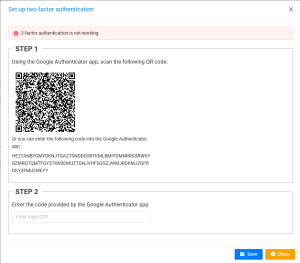
Enable 2FA authentication:

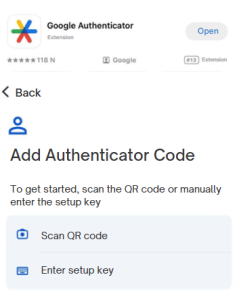
  • Use the Google Authenticator app to scan the code

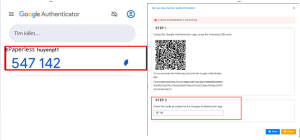
  • After scanning the code, a 6-digit sequence corresponding to your account name will appear, please enter the correct digits in Step 2

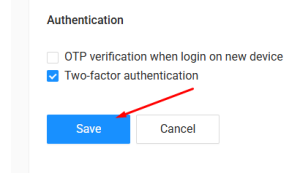
  • Click “Save” to complete the installation

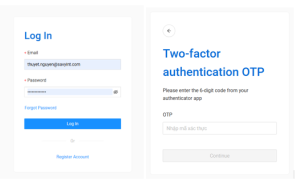
Log in with 2FA

In addition to setting up 2FA, you can also add other security settings such as: OTP authentication when logging in to a new device, adding a phone number and account recovery email.

Configuring the signature template

At ePaperless home page, click “ Displayed name” with handwritten font on the Welcome pane
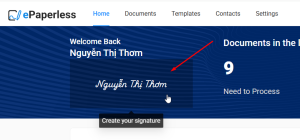
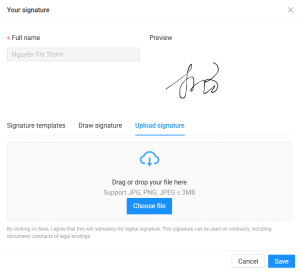
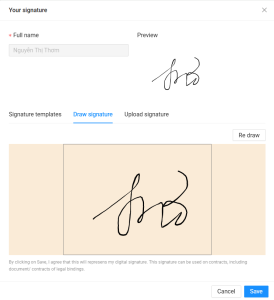
The system displays “Setting signature template” pop-up. There are 3 methods which user can use:
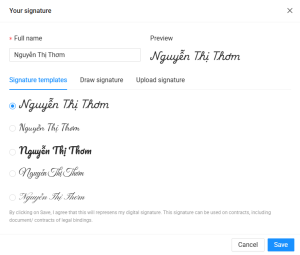
  • Use the available signature templates: Use the available signature templates. The user can change the name by entering in the "First and last name" box

  • Draw signature:

  • Upload signature image

Install apps that support digital signing

Install the USB Token digital signing tool:

  • Download and install the application that supports USB token signing. Note: Start the application before signing the USB token, or reboot the computer to launch automatically
  • Link download: Signing Tool

Install the TrustSign - Remote digital signature authentication app:

  • Scan to download:

Add contacts in the contacts list

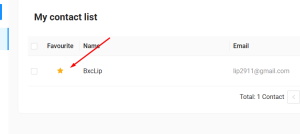
Purpose: Add emails and contacts to prioritize suggestions or add to favorites
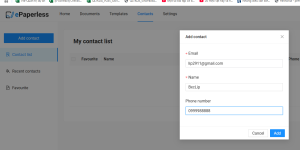
  • Add a contact to the favourite list

Configurations for Unit Administration

  • When you sign up ePaperless via your organization's account, an administrator account will be provided, which will be necessary so that you can initialize data and administer information for your organization.
  • Access the admin page: https://epaperless-admin.digital-id.vn
  • Set up and administer the following information:
    • User account administration in the unit
    • Create a user account in the unit
    • Manage branches in the unit
    • User group administration
    • Create a user group
    • Add people to a user group
    • Create a shared form
    • Assign form permissions to a user group
    • Assign form permissions to a sub-unit


In this Article
Admin Guide

Overview

The "Savyint ePaperless - Admin guide" describes and provides detailed instructions for users on how to operate and utilize the ePaperless product with key functionalities such as: 

  • Login 
  • System Administration 
    • Users 
    • Units 
  • Decentralization Management 
    • User groups 
  • Update personal information 
In this Article
User Guide

Overview

The "Savyint ePaperless - User guide" document provides a detailed description and step-by-step instructions for users on how to operate and utilize the ePaperless product with key functionalities such as:

  • Account registration/Login
  • Homepage
  • Document list/Document creation
  • Template list/Template creation
  • Document signing
In this Article
Troubleshooting Guide

Introduction 

Savyint ePaperless is a comprehensive technology solution that helps businesses and individuals digitize documents, automate processes, and perform secure digital signatures. The product allows for flexible document tracking, lookup, management, and storage, easy access anytime, anywhere. 

Document the Troubleshooting Guide during the use of ePaperless, includes a list of common problems, causes, and solutions. 

Troubleshooting guide can be useful for both the user and the technician. Users can use this guide to try to troubleshoot problems by themselves. Technicians can use this guide to diagnose and troubleshoot problems faster. If you have a problem with the product, referring to the troubleshooting manual is a good step to fix the problem. You can also seek help online or contact customer support. 

The documentation used for the Savyint ePaperless software with an access address of https://epaperless.digital-id.vn. 

 Troubleshooting guide 

Clear web data 

During use, web data will be saved in the browser's temporary memory, these data sometimes fail due to many different reasons such as: loss of connection, duplication with other websites, computer crashes when saving data, browser with malicious code, etc.   

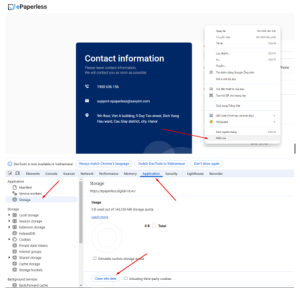
Therefore, when encountering some abnormal errors such as: unable to operate, unresponsive buttons, broken interface, etc., users can clear web data. There are 2 ways to clear web data:  
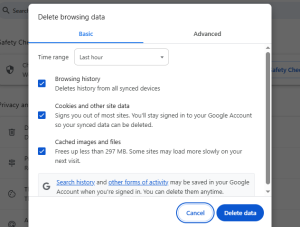
  • Option 1: While accessing ePaperless, press Ctrl + Shift + Del, and then select the time you want to delete and click Delete Data

  • Option 2: While accessing ePaperless, press F12, or right-click to select Check. The DevTool window appears, select the Application tab, select the Storage menuleft, and then click Clear site data.

Check your internet connection

  • In case customers report to Savyint due to errors or lost internet connections, lead to slow processing to ePaperless or errors, to solve these problems, you should check your network connection by following these steps:
  • Open cmd, type ping 8.8.8.8, if you see a reply and the time < 100ms, the connection is normal
  • Try visiting a different website, for example google.com and see if it responds
  • Check the network wiring and connection ports
  • Call technical support from your internet provider
  • Contact a computer repair unit if the problem arises from your computer (network card failure, software errors, hardware, etc.)

Check your email

  • In cases, customers do not receive notifications and emails from ePaperless. Possible causes are:
  • Enter the wrong email address
  • ePaperless emails are spammed: In this case, please move the ePaperless email to your Inbox and mark it as not spam.
  • Error sending email to your mail server: In this case, please try to resend the email from ePaperless. If that doesn't work, please try using a different email to check.

Notice to SAVYINT

If errors cannot be fixed through the documentation instructions, please report them to the Savyint team:

  • Chat with us via Telegram app: https://t.me/+dZ3ialVxlcQ3YmQ1
  • Notification message: In order for the issue to be resolved early, the content of the notification should clearly describe the following message:
    • Problems arising when performing any operations
    • Problems that arise when calling which API of SAVYINT
    • Screenshot of results returned from SAVYINT's API
    • Screenshot of errors when performing operations

Troubleshooting time

  • The troubleshooting time depends on the complexity of the problem, usually the problems will be fixed as soon as the SAVYINT team receives the email.
  • Complex problems or errors from the Core system will be fixed by SAVYINT's technical team in 1-2 days.

Disclaimer

SAVYINT will not be responsible for handling errors in the following cases:

  • In case an problem arises that is not related to ePaperless's operations.
  • The ePaperless access address is incorrect or fake. Correct address: https://epaperless.digital-id.vn.
  • The customer's computer was hacked.
  • Violation of ePaperless terms and policies.
In this Article
Operation and Installation
In this Article

Not finding documentation you need?